
To back up photos safely, you need more than a phone that says its pictures are in the cloud. A synced photo library can protect against a broken device while still repeating an accidental deletion across every connected screen. Keep an independently recoverable copy outside that system, then test it. This guide explains how to do that with iCloud Photos, Google Photos and a separate local or offsite backup.
The central distinction is between access and recovery. Cloud photo services make pictures available on multiple devices. A backup should also help when an account is inaccessible, a mistake spreads through sync, a library becomes corrupted or a device is lost. Those failure scenarios overlap, but they are not identical. The right setup depends less on choosing a fashionable storage service than on preventing one mistake from affecting every copy.
Why cloud photo sync is not the same as an independent backup
Apple's iCloud Photos documentation says changes made on one device appear on other devices. Deleting a photo in an iCloud Photos library removes it from other devices using that library; Apple provides a Recently Deleted recovery window, generally 30 days, but that is a temporary safety net rather than a permanent archive. Apple also states that photos already synchronized through iCloud Photos are not duplicated in the device's ordinary iCloud Backup.
Google's Photos deletion guidance likewise warns that deleting an item through the service can remove it from devices with backup enabled and from associated albums. The precise consequences and recovery periods depend on platform, backup status and the action taken. Do not assume that deleting from a phone's gallery, deleting in Google Photos, choosing Free up space and using Undo backup all do the same thing.
Neither service is useless as protection. An uploaded photo can survive a stolen phone, and recovery folders can undo many mistakes. The problem is dependence on a single account and synchronization rule. If the only copies are all managed by the same library, they may share the same deletion, account-lockout or configuration risk. A truly independent export changes that risk.
How to back up photos using three genuinely separate copies
The Cybersecurity and Infrastructure Security Agency's 3-2-1 guidance recommends three copies of important files, two types of storage media and one copy offsite. For a personal photo collection, that is a useful design target, not a guarantee against every disaster. The crucial test is whether a failure in one place can destroy or lock you out of the others.
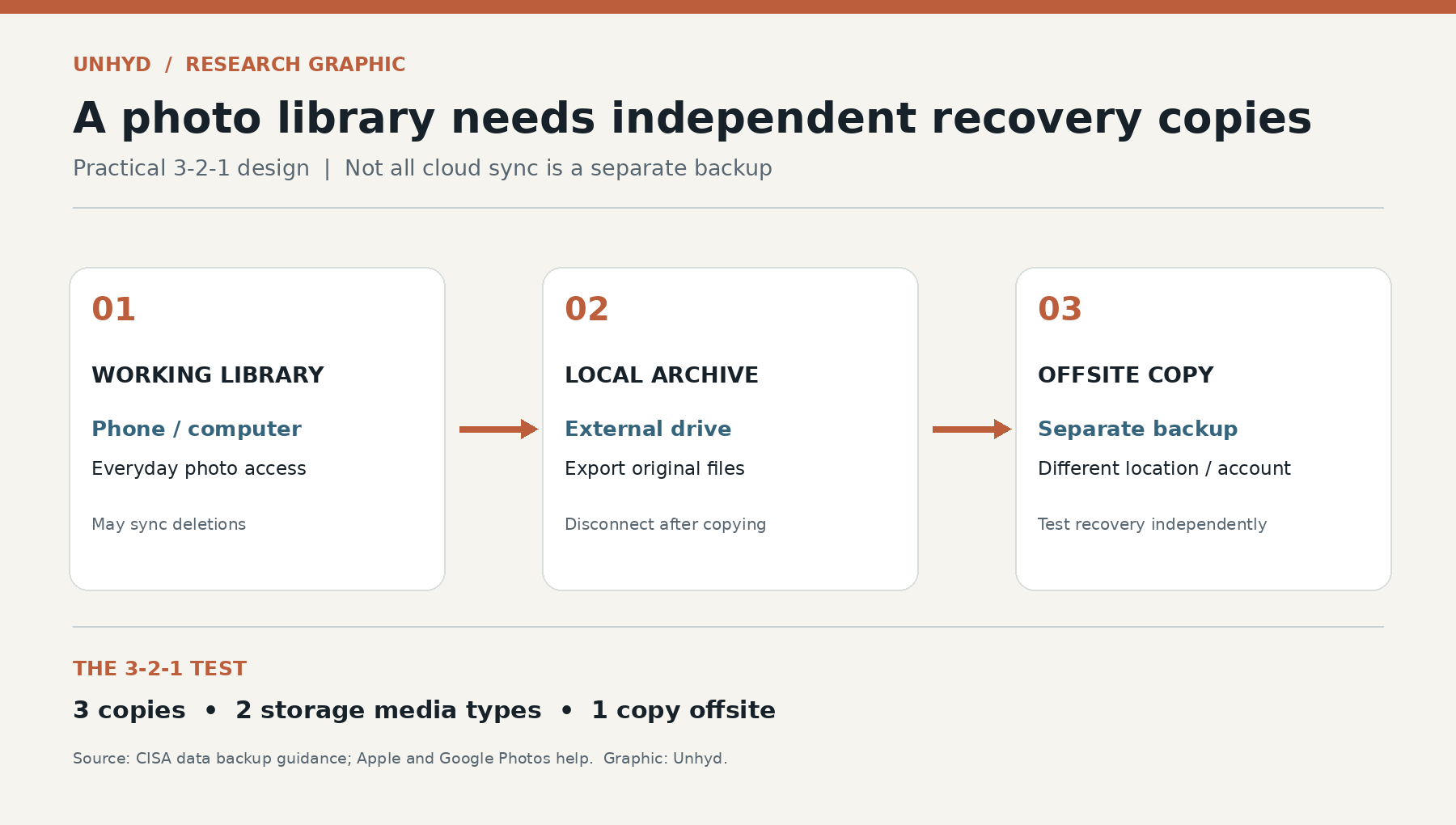
Copy one: your working library. This might be the Photos app on an iPhone or Mac, Google Photos, or an organized folder on a computer. Know where the full-resolution originals are actually stored. An optimized phone may hold smaller local versions while the originals reside in a cloud account. A thumbnail is not an independent full-quality archive.
Copy two: a disconnected local archive. Export original photos and videos to a separate external drive or other appropriate medium. Check that the export has finished, that its folders contain the expected date ranges, and that a sample of files opens without signing into the original cloud service. Disconnect the drive when the copy is complete and store it securely. CISA specifically warns that permanently attached backup drives may be reachable by ransomware.
Copy three: an independently controlled offsite copy. This can be another encrypted drive kept at a different location or a separate backup service with a recovery path that does not simply mirror deletions from the working photo library. The second offsite system should be independently recoverable. If both cloud destinations use the same compromised account or synchronize deletions automatically, the apparent number of copies may overstate the protection.
For strict 3-2-1 planning, also check the media distinction. A phone's internal flash storage and an external solid-state drive are both flash-based storage, even though they are separate devices. Using a hard disk, suitable removable media or another genuinely different storage mechanism can help meet the two-media principle. The larger practical point is diversity of failure modes, physical location and account control.
Export originals from iCloud Photos without deleting the library
Apple provides an official guide to making copies of iCloud data. On a Mac, open Photos, select the pictures and videos you want to preserve, and use File > Export. If you need the original files, choose the option for unmodified originals where appropriate. A Mac that uses optimized storage may need time and sufficient free space to download originals before the export can finish.
On an iPhone or iPad, Apple documents a route using an attached external storage device, Download and Keep Originals, and Export Unmodified Original. Menu labels vary by operating-system version, so follow the currently displayed options and Apple's instructions for your device. For a smaller selection, iCloud.com also offers downloads. A large photo library may require a computer and substantial local storage.
Do not delete the synced originals after seeing a progress bar reach 100%. Open several exported files directly from the destination drive, including a recent video, an older photo and any special formats you care about. Check that the copy contains the expected number of folders or assets and that their dates and file sizes make sense. Some exported versions may not preserve every album arrangement, edit or shared-library feature; decide whether you need both the unmodified files and a separate representation of edits.
Also remember Apple's distinction between iCloud Photos and iCloud device backup. Turning on the latter does not create an additional duplicate of photos already held in iCloud Photos. A separate export is necessary if you want an independent archive that you control.
Export Google Photos without assuming a ZIP file is complete
For a large Google Photos library, Google documents exporting through Google Takeout. Select Google Photos in the export, choose the archive settings and download every archive part produced. A collection that exceeds the chosen archive size can be split into multiple files. Save those files to a destination with sufficient capacity before extracting them.
Google notes that some additional metadata may be delivered in separate JSON files, while the downloaded file's operating-system timestamp can differ from the original capture date. Do not interpret a new download date as proof that the original photograph lost its embedded capture metadata. If preserving album organization, captions or location details matters, keep the export's accompanying metadata until you have checked what your preferred photo-management software can import.
After extraction, open several files from different years and formats. Verify that videos play through, not just that their thumbnails appear. Compare the exported collection with the library's visible date range and investigate missing albums or unexpected gaps. A ZIP that downloads successfully is only the first step; a backup becomes credible when its contents can be recovered.
Five questions to ask before deleting photos to free space
First, are the originals uploaded? Look for the service's current backup or synchronization status and confirm it is finished. A photo visible as a thumbnail is not enough to establish that its full-resolution original is safely stored.
Second, do you have an independent copy? Check that your external or separate offsite archive contains the specific images you would regret losing. For valuable family events or professional work, verify the actual files rather than relying on a count alone.
Third, which deletion command are you about to use? Apple Photos deletion, Google Photos deletion, device-gallery deletion, storage optimization and provider-specific free-space commands can have different effects. Read the confirmation text on the exact device and version you are using. If the behavior is unclear, stop rather than experimenting on irreplaceable files.
Fourth, what is the recovery window? Recently Deleted and Trash are useful temporary safeguards, but their availability and retention rules differ. Do not build a long-term preservation plan around a trash folder or assume that a provider can restore permanently removed files.
Fifth, can you sign in after losing the phone? Check account-recovery options before relying on cloud storage as the only accessible copy. Unhyd's passkey setup guide explains why strong sign-in and a tested recovery route belong together. Secure authentication protects access; it does not replace independent data backups.
How to test a photo backup without risking your collection
Create a small test set of files you can afford to lose, ideally a recent photo, an older image, a short video and a file with meaningful metadata. Export that set through the same process you plan to use for the full library. Disconnect the backup drive, reconnect it on another computer if available, and open the files from the backup destination. Confirm image quality, video playback and any metadata you need. Do not test destructive synchronization commands on your real family library.
For an independent offsite service, practice recovering one file to a new folder rather than overwriting your live library. Record the date, location of the copy, export format and the steps needed to restore it. Repeat after changing devices, photo services or account settings. A routine restore rehearsal is the consumer equivalent of the approach in Unhyd's guide to testing business backups, although the systems and stakes differ.
There is no universal schedule. A professional photographer might need a copy after every shoot; someone taking a few pictures each week may choose a monthly external export. Choose the longest interval of new photos you would be willing to lose, then make the backup interval shorter than that. An automatic system is preferable when it can be configured to preserve independent recovery versions.
Which setup makes sense for your photo library?
If you mainly use an iPhone, iCloud Photos may remain the most convenient working library. Add an exported copy on a separate drive and another independently recoverable offsite copy. If you mainly use Android, Google Photos can provide a similar day-to-day experience, but the independent copies still matter. If you edit large RAW files on a computer, prioritize an organized local archive, reliable versioned backups and a tested offsite destination; syncing every file through a consumer gallery app may not match your workflow.
For shared family libraries, agree on who can delete or reorganize images and who maintains the independent archive. Shared-library permissions can be convenient for collaboration while increasing the consequences of an accidental deletion. The safest workflow has a clearly identified owner for the backup, an agreed schedule and a restore procedure another trusted person could follow.
The practical rule is simple: do not treat a second screen showing the same synced library as a second independent backup. Keep copies that survive different failures, verify the originals, and periodically prove that recovery works. The value of a photo archive is not the number of storage icons attached to it. It is whether the pictures remain yours when something goes wrong.