
Learning how to set up a passkey in 2026 is less about finding a new password and more about choosing where your sign-in credential will live. A passkey lets a supported website verify you through a cryptographic key stored on a device or in a credential manager. You usually approve the sign-in with your phone's screen lock, fingerprint, face recognition or a device PIN. The website does not receive your fingerprint or a reusable password.
The shift is no longer experimental. On October 15, the FIDO Alliance estimated that 7 billion passkeys were in use worldwide. That figure is an industry estimate of credentials, not seven billion individual users. FIDO's 2026 Passkey Index draws on 15 participating consumer services; its usage results should not be mistaken for a census of every website or person. For readers, the useful question is simpler: how can you turn on a passkey without creating an account-recovery problem?
What a passkey changes—and what it does not
A traditional password is a secret that you type into a website. If a phishing page persuades you to enter it, the attacker may capture that secret. Passkeys work differently. A service keeps a public key, while a corresponding private key is controlled by your device or credential manager. The device signs a challenge for the legitimate website. Because the credential is bound to the service's domain, a lookalike site generally cannot obtain a valid passkey authentication for the real service.
That design is why CISA describes FIDO/WebAuthn authentication as phishing-resistant. It does not mean an account is immune to all fraud. A scammer may still manipulate a user into approving a payment, surrendering a recovery code or granting access through a different route. Device compromise, account-recovery weaknesses and poorly secured fallback sign-ins remain important. Unhyd's reporting on deepfake social engineering explains why a convincing identity claim should not replace an independent verification process.
How to set up a passkey on a supported account
First, sign in to the genuine service using your existing method. Navigate directly through its account or security settings rather than following an unsolicited message telling you to “upgrade your login.” Look for a control labeled Passkey, Passwordless sign-in or a similar name. If the option is missing, the account or its current configuration may not support passkeys yet. A provider's interface can change, so follow its live help instructions rather than a screenshot from an old tutorial.
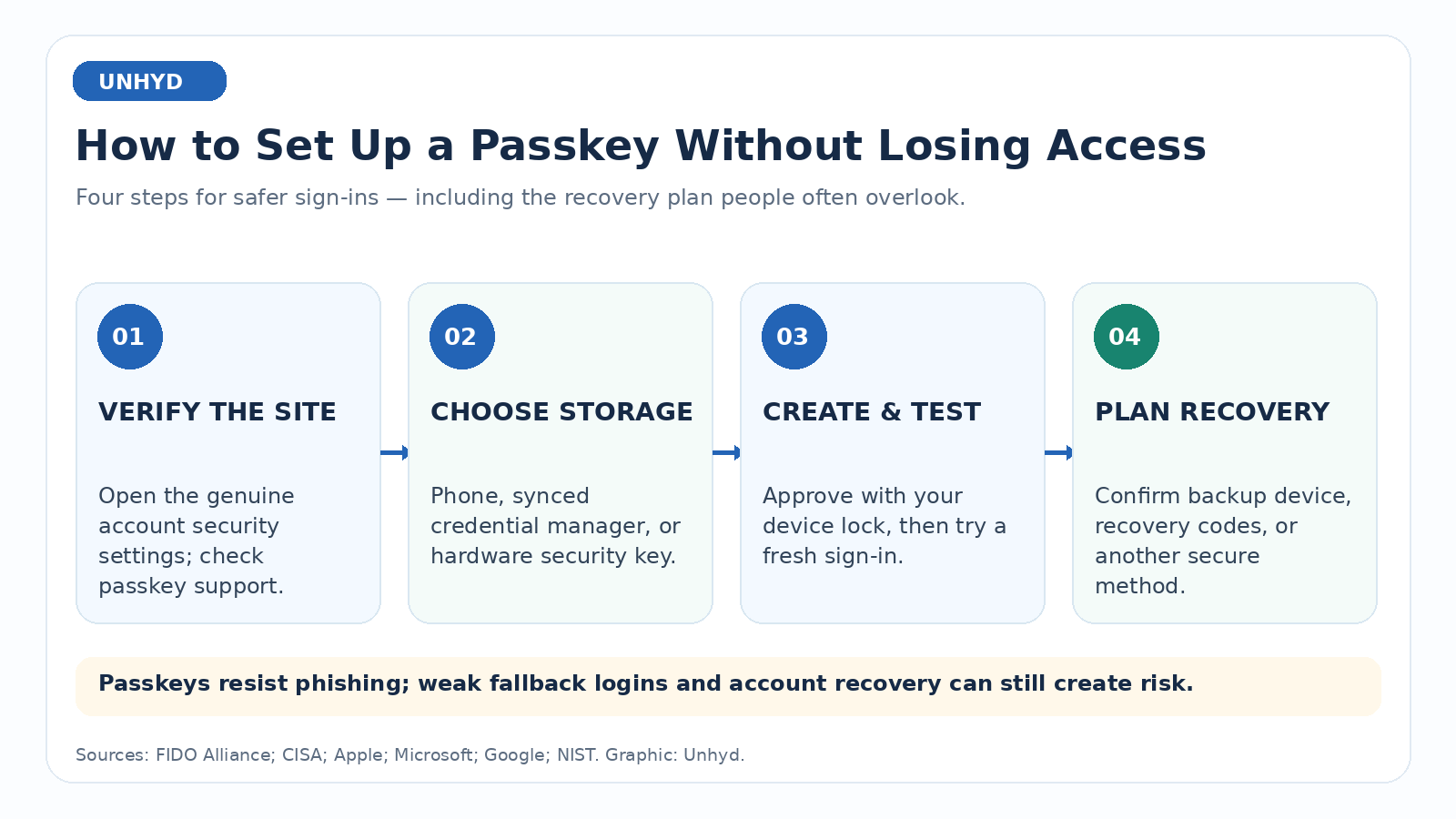
Second, decide where to save the passkey. The default may be a phone, your computer's secure sign-in system, a synced password manager or a hardware security key. A synced passkey can follow you to other supported devices through your credential provider. A device-bound passkey stays on the specific authenticator. Neither choice is automatically best for everyone: convenience, device ownership, travel needs and recovery options all matter.
Third, approve the creation prompt with the device's usual unlock method. You are not uploading your fingerprint to the website. The service registers the public-key credential and your device or manager keeps the private-key material. The FIDO Alliance's passkey explainer describes the underlying standards and the differences between synced and device-bound credentials.
Finally, sign out of the service and test a fresh sign-in before changing anything else. Confirm that you can recognize the account, unlock the correct device and complete the login. Then check the account's recovery settings. Do not remove an existing password, security key or backup method until you understand how the service will let you back in if your phone is lost.
Setting up passkeys on iPhone and iPad
On a supported Apple device, a website or app may offer to create a passkey during account registration or from an existing account's security settings. Apple's iPhone passkey instructions explain that the usual flow is to choose the passkey option, approve saving it and later sign in with Face ID, Touch ID or the device passcode. Apple's documented configuration uses iCloud Keychain and two-factor authentication for its synced experience.
The exact menus depend on the iOS version and the website. If you use more than one credential manager, pay attention to which provider the save dialog selects. A passkey stored in one ecosystem will not necessarily appear automatically in another. Apple also documents nearby-device sign-in using a QR code, which can let a phone supply a credential to another computer without copying the private key onto that computer.
Setting up passkeys on Android, Windows and other devices
For Android, start from the supported website's account-security settings and follow the device's passkey prompt. The selected credential provider and Android version determine how saving and syncing work. Avoid claiming that every Android phone presents the same menu. Google's account passkey overview explains the use of a device screen lock, face scan or fingerprint for Google Account sign-ins; other services may offer different flows.
On Windows, passkeys may be saved through Windows Hello, a compatible credential manager or a hardware security key. Microsoft's current instructions distinguish a personal Microsoft account from a work or school account, where administrators may restrict available options. For a personal account, Microsoft directs users to advanced security options and the control for adding a new sign-in or verification method. Cross-device sign-in can also use a nearby phone and QR code when supported.
If you share a computer, do not assume that saving a credential to the browser is equivalent to saving it to your own phone. Check the selected provider, the device's user profile and who can unlock it. On a public or borrowed computer, using a nearby personal device is often more appropriate than leaving a new credential in the computer's local profile.
Synced versus device-bound passkeys: the recovery trade-off
The most consequential setup decision is often invisible at the moment you click Create. Synced passkeys can reduce the risk of losing access when a single phone fails, because the credential provider may restore them on another authenticated device. But that convenience depends on the security and recovery procedures of the account that manages the sync. A device-bound passkey may offer stronger control over where the credential exists, yet losing the device can be disruptive unless you have another authorized way in.
For an ordinary personal account, a reputable synced credential manager may offer a practical balance. For a highly sensitive account, a device-bound hardware security key and a separately secured backup key may be preferable. These are risk-based choices, not guarantees. The National Institute of Standards and Technology has published guidance recognizing the benefits and conditions of syncable authenticators. Security also depends on recovery, account policy and the rest of the sign-in system.
Before relying on passkeys alone, answer three questions: Can you access your credential manager if your primary phone is gone? Can you authenticate to the account from a second trusted device? Does the service offer a backup security key, recovery code or another documented recovery method? Store any recovery codes according to the service's instructions, separate from the device they are meant to replace. Test backup access when practical, but do not expose secret codes merely to test them.
Common passkey problems and how to troubleshoot them
If the passkey prompt does not appear, check whether the service supports passkeys for your account type, whether your browser and operating system are current, and whether the intended credential manager is enabled. If a QR-code login fails, confirm that the phone is nearby and follow the on-screen proximity or Bluetooth instructions. Do not scan unexpected codes delivered through email or chat as a supposed security emergency.
If the wrong account appears, stop and inspect the saved credential's account label. If a device has been replaced, use the provider's documented restore process or an existing backup sign-in method. If you have lost all authenticators, use the service's official recovery route; no general-purpose passkey reset service can legitimately recover every account. Be skeptical of anyone who asks for a fee or recovery code to “unlock” your passkeys.
A passkey also does not automatically disable older login methods. Some websites continue to allow password recovery or SMS-based fallback, which may become the weakest route into the account. Review which methods remain active and whether you can safely remove weak options without risking lockout. That is the consumer-scale version of a principle discussed in Unhyd's zero-trust security explainer: access should depend on verified identity and appropriately constrained authentication, not merely familiarity.
A practical passkey setup checklist
Choose one important account that offers passkeys. Visit its genuine security settings, decide where to save the credential, create it and perform a fresh sign-in. Then document your recovery method and confirm that a second trusted route exists. Only after that should you consider changing fallback authentication. Repeat for other important accounts as support becomes available.
FIDO's October 2026 announcement suggests that passkeys are becoming routine across major participating services. It does not remove the need for individual setup decisions. The strongest passwordless experience is not the one with the fewest prompts today; it is the one that resists phishing and still gives its legitimate owner a reliable way back tomorrow.