

How to read app privacy labels begins with a distinction: an app-store disclosure describes the developer's reported data practices, not an independent audit of everything the software does. Before installing an app, compare what the listing says it collects with the app's purpose, its permission requests and the linked privacy policy. Apple's App Store and Google Play make that research easier, but their labels cannot make the decision for you.
Where to find an app's privacy information
On an iPhone, open the app's App Store product page and scroll to the App Privacy section. Apple's summary can identify categories of data the app may collect and whether that information may be linked to you or used to track you. Open the details rather than relying only on the short overview. Apple explains the system in its guide to App Store privacy information.
On Google Play, open an app's listing, find Data safety and select See details to examine the reported practices. Google's consumer instructions explain where that section appears. In both stores, review the privacy-policy link separately; it may contain important context that cannot fit into the summary.
Why app privacy labels are useful but not guarantees
Both systems rely substantially on declarations supplied by the developer. Apple requires developers to describe their own practices and relevant third-party partners, and to keep those answers current. Google reviews submitted Data safety information as part of its store process but says developers remain responsible for complete and accurate declarations; Google cannot determine every developer's internal handling of user data on the developer's behalf. These are meaningful platform requirements, not blanket certifications that a particular app's statements have been independently proven.
One practical consequence is that a reassuring label should prompt the next question, not end the assessment. Does the requested information fit the service? Does the policy explain the purpose? Are there optional settings that reduce collection? An unfamiliar developer with a polished listing still warrants an identity check.
How to interpret Apple's tracking and data categories
Apple's disclosures distinguish Data Used to Track You, Data Linked to You and Data Not Linked to You. Under Apple's definitions, tracking generally includes linking app data with information from other companies' properties for targeted advertising or ad measurement, or sharing certain data with a data broker. Data linked to you is associated with your identity through an account, device or other details. Data not linked to you is presented as information collected without that identity connection.
Those headings are not interchangeable. “Not linked” does not mean “never leaves your phone,” and “not used to track you” does not mean “no personal information is collected.” Apple's developer disclosure documentation defines collection and explains exceptions for certain limited uses. Under Apple's system, data processed only on the device and not sent off it generally does not count as collected for the label. Read the definitions before treating a short label as proof of anonymity.
What Google Play's Data safety section tells you
Google's Data safety section can describe types of data collected or shared, whether collection is required or optional, the purposes of use and selected security practices. Developers also provide information about practices such as encryption in transit and data-deletion options. The Play Console requirements make developers responsible for disclosures about relevant third-party software development kits as well as their own code.
Interpret the claims narrowly. Encryption in transit concerns protection while information moves between systems; it does not by itself establish who can see stored data or how long it is retained. A way to request deletion is useful, but it does not mean every record disappears instantly. Google's rules also define circumstances in which transient processing is treated differently from retained collection. A label can therefore be accurate within its defined scope while leaving questions a careful reader should ask.
Two hypothetical app examples: weather versus photo editing
Consider two invented scenarios, not audits of named products. Example A is a weather app that requests location. A location request might fit a feature that displays nearby forecasts, but you can still ask whether precise location is essential, whether you can enter a city manually, and whether the app needs access while it is not in use. If the label describes location being used for advertising as well as forecasts, that is a separate decision from whether the forecast feature is useful.
Example B is a photo-editing app that asks for access to your photo library. Access can make sense when you select an image to edit. The next question is whether editing takes place entirely on the device or whether images are uploaded to a server, retained for later use or processed by partners. An app's permission to access a photo is not the same thing as an explanation of everything that happens after the photo is selected.
Neither scenario tells you that weather apps normally misuse location or photo editors necessarily retain images. The lesson is to compare purpose, access, transmission and retention separately. Two apps requesting the same permission may present different privacy tradeoffs depending on what they do with the information.
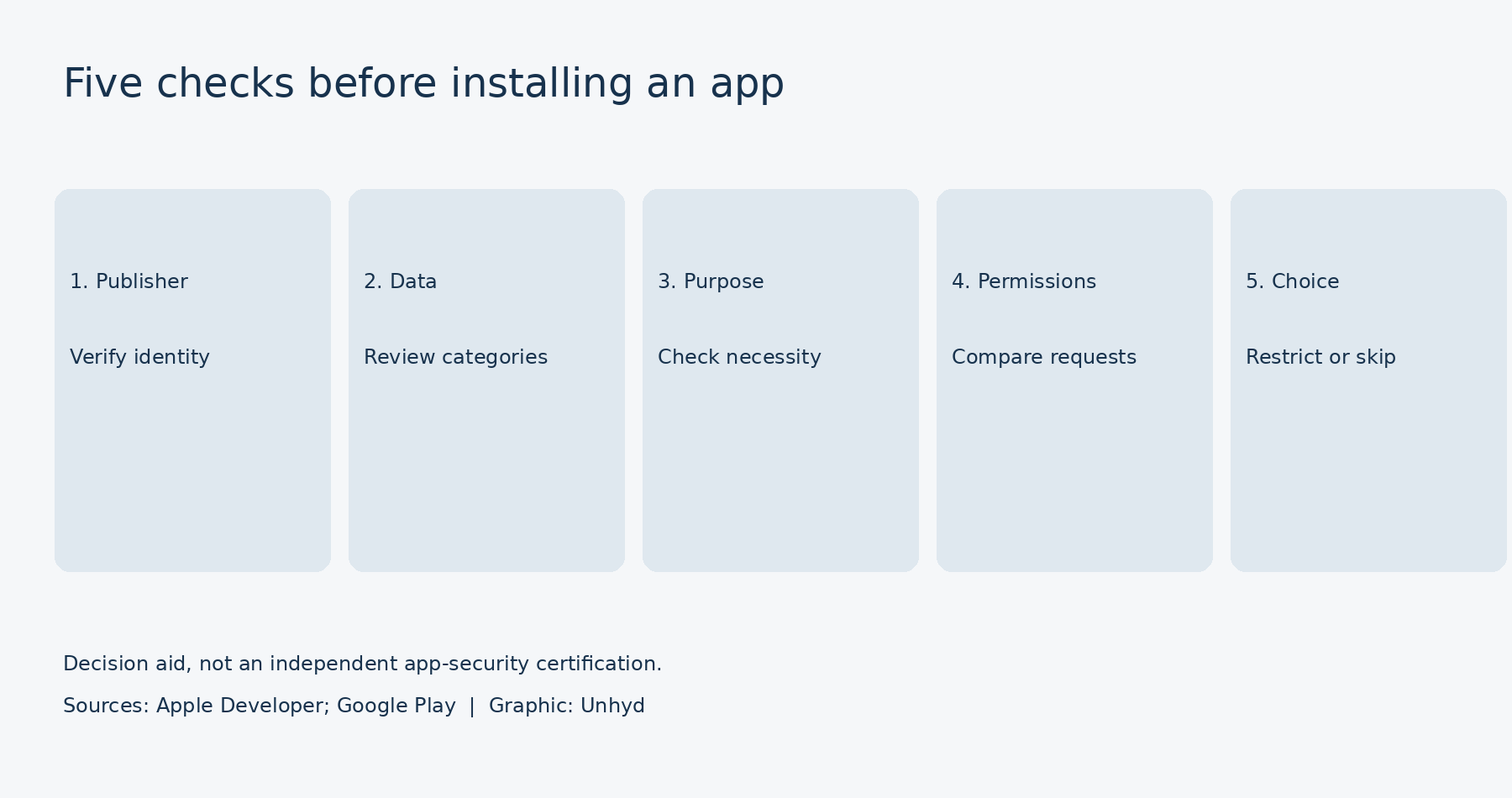
How to read app privacy labels: a five-question test
First, who published the app? Compare the developer name with the organization's own website. Look for the official link to the store listing, particularly for banking, government or workplace apps. A familiar-looking logo is not enough to establish identity.
Second, what information is declared? Pay particular attention to contacts, precise location, photos, financial details, health information, identifiers and messages. The presence of a data category is not an automatic rejection, but it identifies the questions that matter most.
Third, why does the app need it? Distinguish information essential to the feature you want from optional analytics, advertising, personalization or convenience features. Compare the explanation against the real task rather than the language in the app's marketing description.
Fourth, do the policy and permission prompts tell a consistent story? If the app later asks for camera, microphone or location access unrelated to what you are doing, decline or choose a narrower permission where available. Ask for clarification if the policy and label appear to contradict each other.
Fifth, what is your alternative? You may be able to enter a location manually, use a website, restrict a permission or choose a different product. If the app offers insufficient information for a sensitive task, postponing installation is a reasonable decision. This five-question framework is Unhyd's editorial synthesis of platform documentation, not an independently tested app-safety rating.
Check permission prompts after installation, too
The store label and a permission prompt address different issues. A label describes declared data practices; a system prompt asks whether the app may access a particular device capability or information category. Some app data can be transmitted without triggering the kind of permission dialog you associate with photos or location. Conversely, granting access does not automatically mean every subsequent use is appropriate.
On iPhone, review relevant categories under Settings > Privacy & Security. Apple's permission-management guidance explains how to change access later. Android controls differ by device and software version, so review the permission controls offered on your phone rather than assuming the same labels appear everywhere. If a feature stops working after you deny a permission, decide whether that benefit justifies granting more access.
Read the privacy policy for what the label cannot settle
Check whether the policy identifies the product and operator, explains data recipients and purposes, describes retention and provides a practical contact or deletion mechanism. A company-wide policy may cover services beyond the app you are examining. Watch for vague references to affiliates, advertising partners or service providers when the label says little about the data involved. The existence of broad language is not proof of misconduct, but it is a reason to seek details.
Uninstalling an app and deleting its account are different steps. Google Play's account-deletion requirements generally require eligible apps that enable account creation to offer an account-deletion route and explain applicable retained data. If you want to end a service relationship, look for the account-deletion process rather than assuming removing the icon clears server-side records.
Do not compare Apple and Google labels as identical scores
The two stores use different definitions, presentation rules and disclosure structures. That means a shorter Apple label and a longer Google Data safety section for similarly named apps are not automatically evidence that one is more private—or that someone is hiding data. Product features, operating-system capabilities and reporting definitions can differ. When making a cross-platform comparison, read each system's terms and the product's privacy policy first.
For particularly sensitive services, a store label should be only one part of the evaluation. Unhyd's health app privacy checklist covers the additional questions that arise when an app handles symptoms, wellness information or records. It addresses a specific high-sensitivity category; this guide focuses on interpreting app-store disclosures across categories.
Revisit the choice when the app or your needs change
Permission decisions do not have to be permanent. Recheck them when an app adds features, asks for new access, changes its stated practices or becomes unnecessary. Remove permissions you no longer want and close accounts you no longer use, following the service's actual deletion process. If you change phones, Unhyd's phone trade-in checklist covers the separate task of transferring account access before erasing the old device.
The central lesson is simple: treat an app privacy label as a structured starting point for questions, not a seal of approval. Check the developer, understand what information is declared, ask why it is needed, inspect the permissions and policy, and make a proportionate choice. That approach will not eliminate every privacy risk, but it can reveal tradeoffs that a download button does not explain.